

Installation
Step 1


Download the Pulse App by selecting the buttons above. Pulse helps you stay on track with your Brightspace courses! Do not use the app to submit assignments. Use a computer, laptop, or the mobile browser.
Step 2
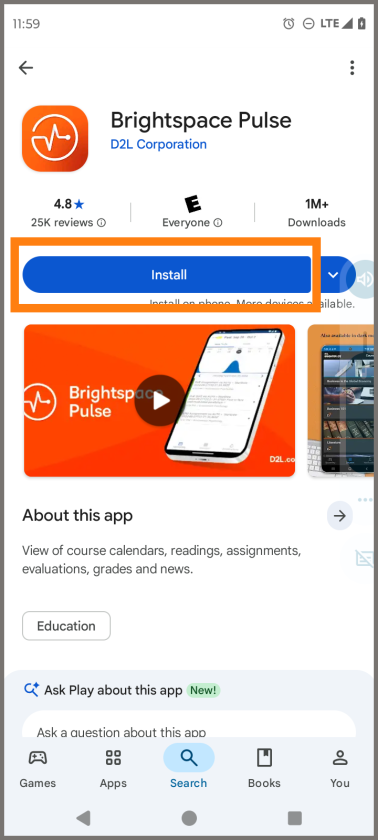
Tap the install button.
Step 3
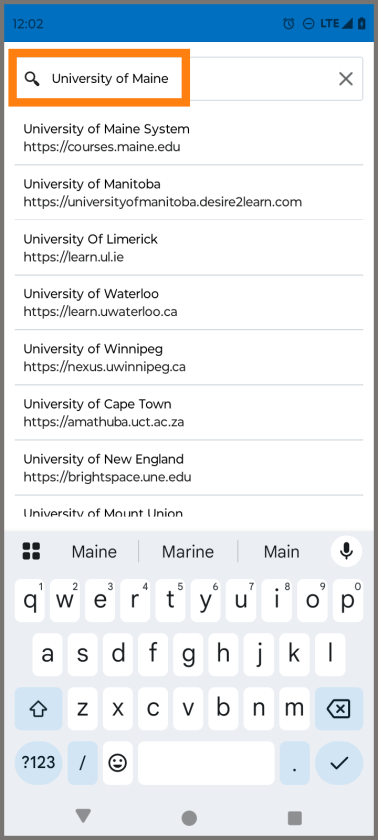
Search for the University of Maine
Step 4
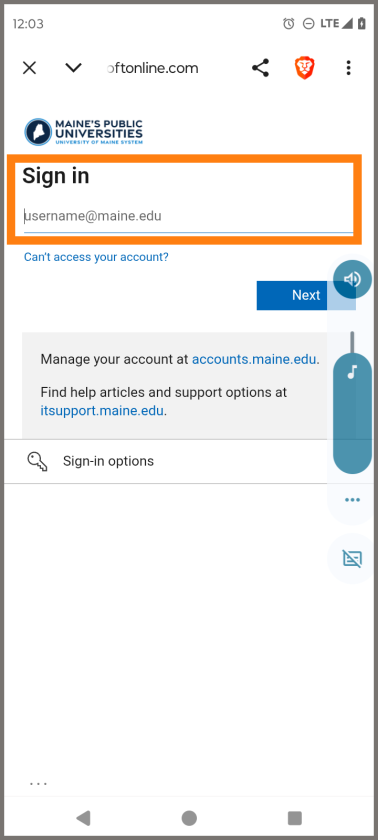
Sign in with your UMA email and password
Step 5
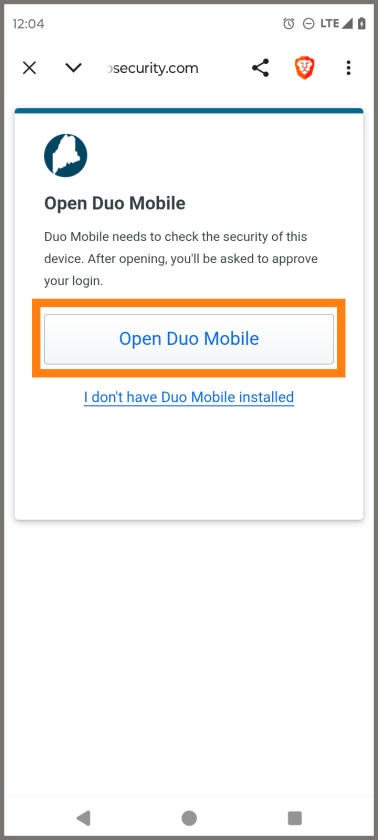
Open Duo Mobile and verify security questions.
Navigate Course and Content
Step 1
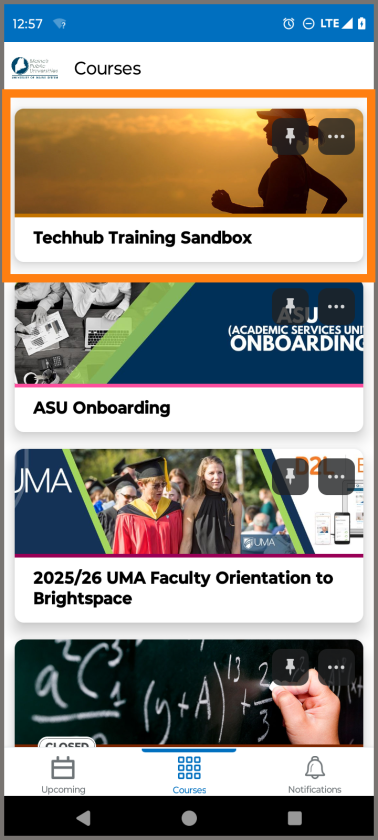
Tap on your course.
Step 2
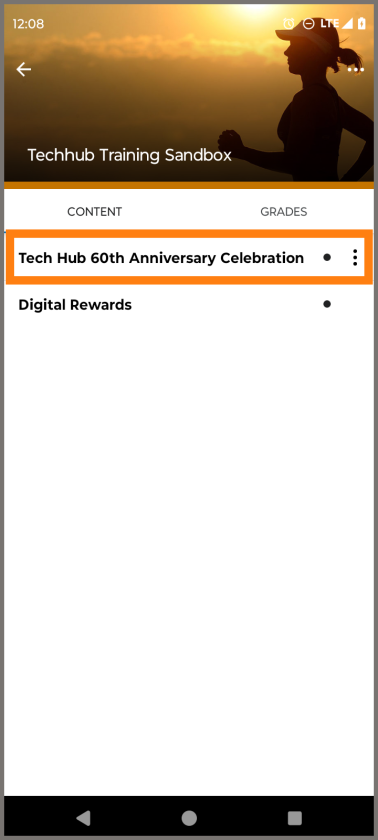
Select the content.
Step 3
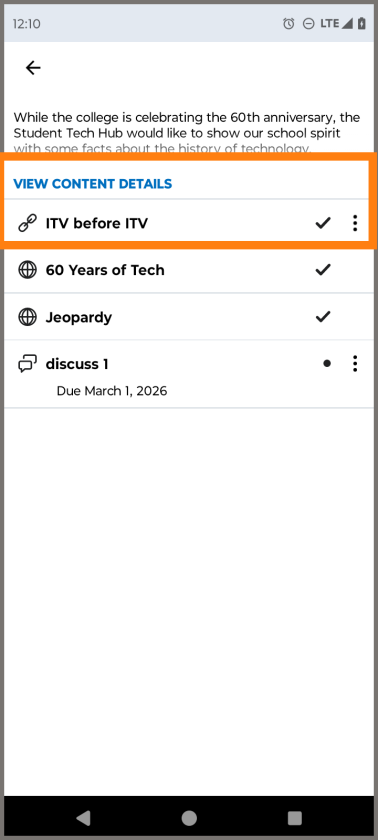
View the content details.
Step 4
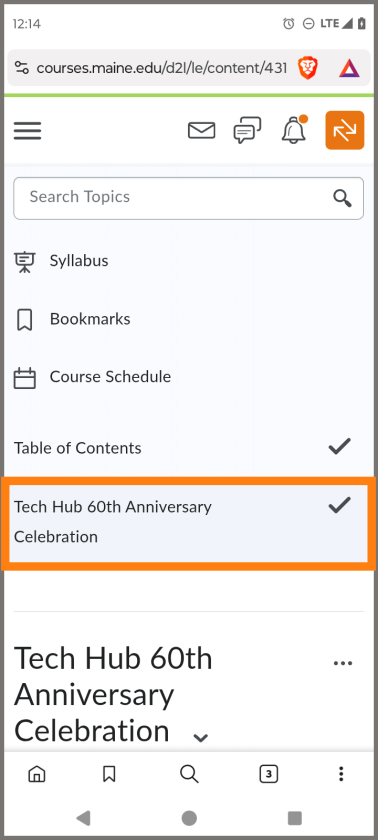
Tap on a course module.
Step 5
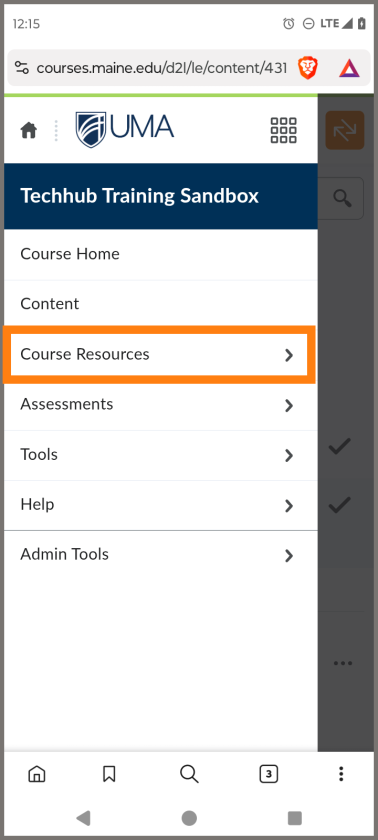
Tap on a category.
Step 6
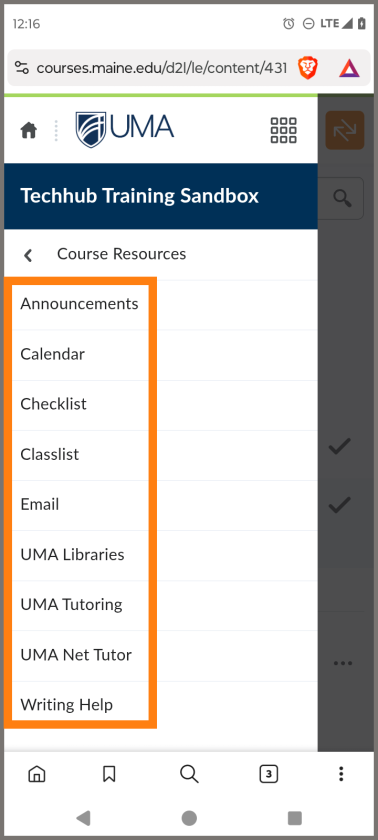
Select a subject.
Phones and Tablets
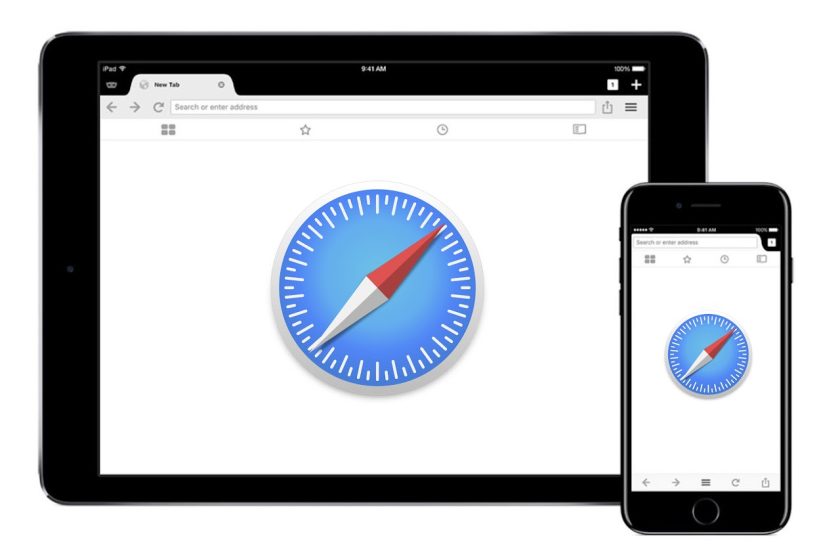
iOS and Android
Students using iPhone/iPad and Android phones/tablets may not be able to view videos and documents in the Pulse App. In this case, access courses using the tablet or phone’s web browser by navigating to courses.maine.edu and enabling 3rd party cookies.
Contact the UMA Student Tech Hub for Live Support
Virtual support:
Chat, Phone & Zoom
Monday through Friday
10am-4pm