

The Pulse App:
Stay Up-to-date on the Go!
Pulse helps you stay connected and on track with your courses!
Download the Pulse App using the buttons below.
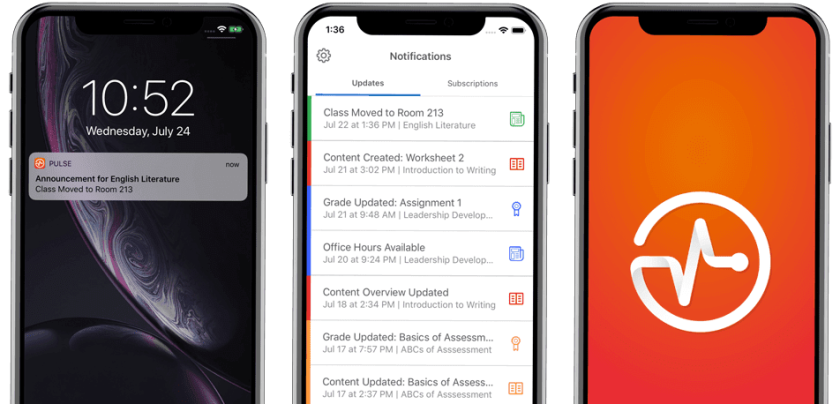


If you do not see the Syllabus, Bookmarks, and Course Schedule.

- Open the App and find your course.
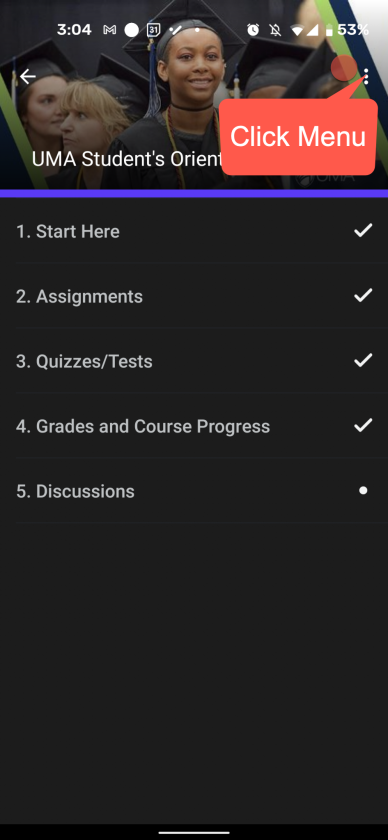
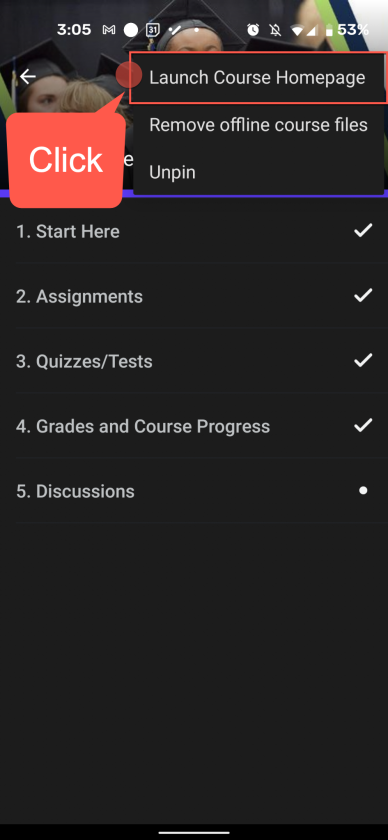
- Click the Kebab Menu (three stacked dots) in the upper right corner and select “Launch Course Homepage.” This will bring them to the Homepage of the course, and they will be able to see all the Homepage details.
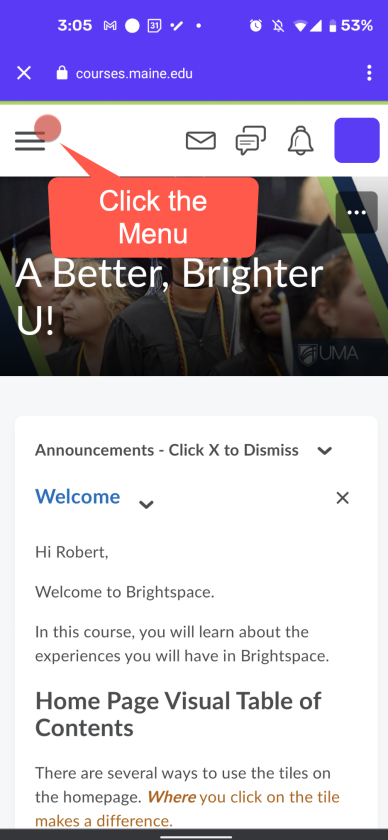
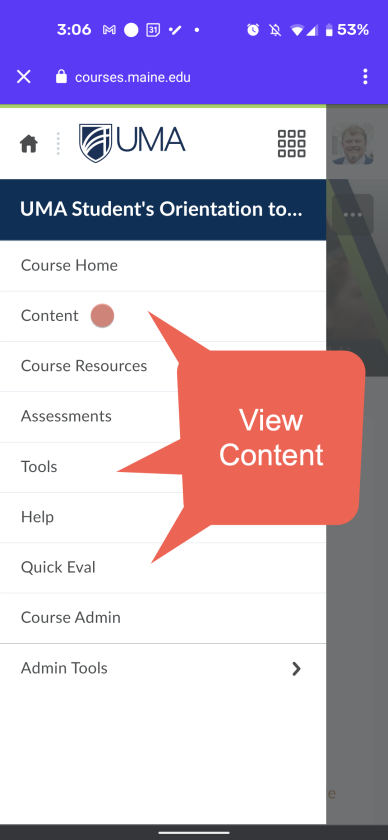
- Then click the Hamburger Menu (three stacked lines) on the left upper corner to see the NavBar.

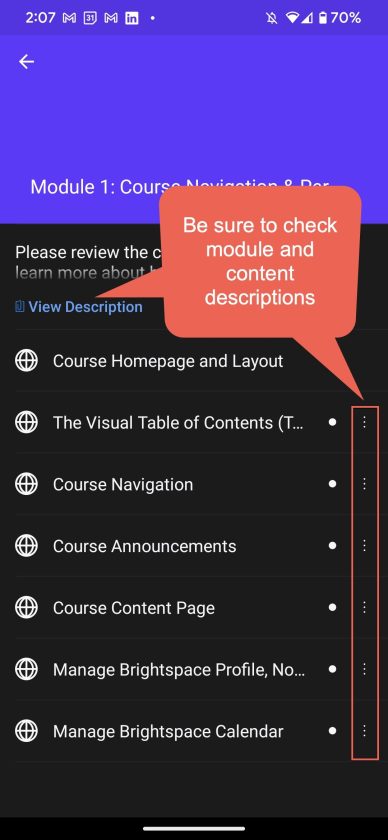
Navigate Course Home Page and Descriptions of Modules and Content with the Kabab Menus
The Brightspace Pulse App is a great way to receive course announcements and updates on mobile devices. The app has improved over time and provides better access to content, module descriptions, and files, but it should not be used for completing assignments.
You should use a computer or the mobile browser app on your smart phone or tablet to submit assignments.
Navigate Course Content With the Hamburger Menu
Brightspace is Mobile Responsive
Brightspace can be accessed without the Pulse App as well, by using your device’s internet browser.
iOS Phones and Tablets
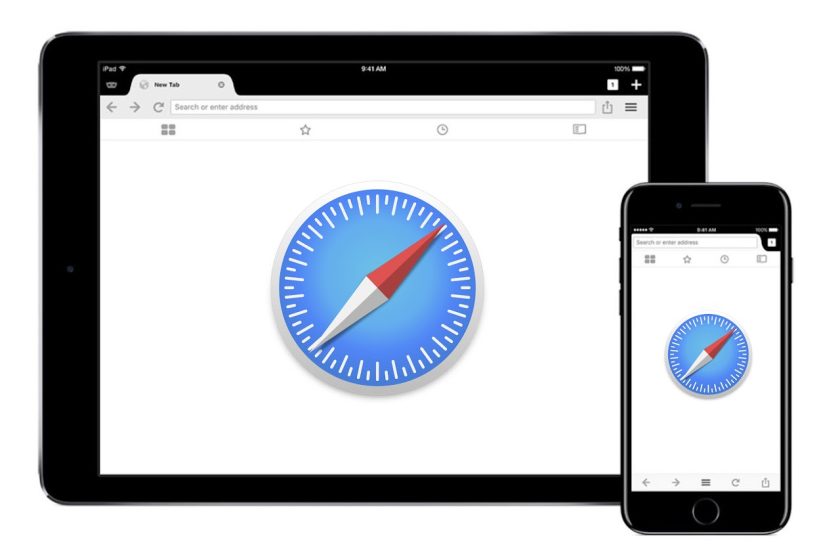
Students using iPhone/iPad may not be able to view course videos in the Pulse App. In this case access courses using the tablet or phones web browser (Safari is recommended) by navigating to courses.maine.edu and enable 3rd party cookies.
This is caused by changes to iOS security features.
Contact the UMA Student Tech Hub for Live Support
207.621.3123 in Live Zoom or Live Chat
Quick Links
- MY UMA
- Apply to UMA
- Attend Student Orientation
- Emergency Notification Alert System
- IT Help
- Libraries
- MaineStreet
- My OneCard
- Navigate
- Select Classes
- Trail Blazer Workshop Series
- Student Support & Development
- Student Handbook
- Veterans & Military Services
UMS User Account Management
- Activate your UMS account (Activation Key Required)
- Change your password
- Recover a lost password
Moose Messages

This Q&A site is a place to ask your college questions and have them answered by a staff member. To get started, ask a question above.