




Communication channels in the integrated Gmail experience
Quickly choose the right communication channel for any task—and stay in control across everything that demands your attention—all from within Gmail.
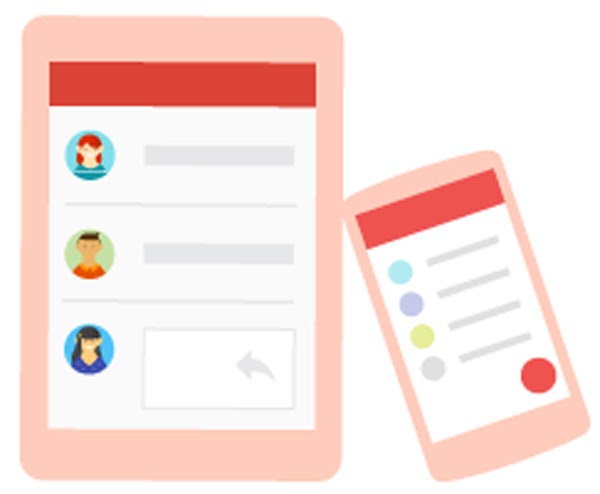
When to use Email
Formal & Structured
- Share detailed information.
- Use error-free grammatically correct writing.
- Use schedule send to send email later.
- Get responses when it’s convenient for recipients (asynchronous communication).
- Send documents and other files as attachments.
Quick Starts
Top 10 things to know about the integrated Gmail experience.
Integrated Gmail experience cheat sheet
Create and send email, organize your inbox, and start and join video meetings right from Gmail.
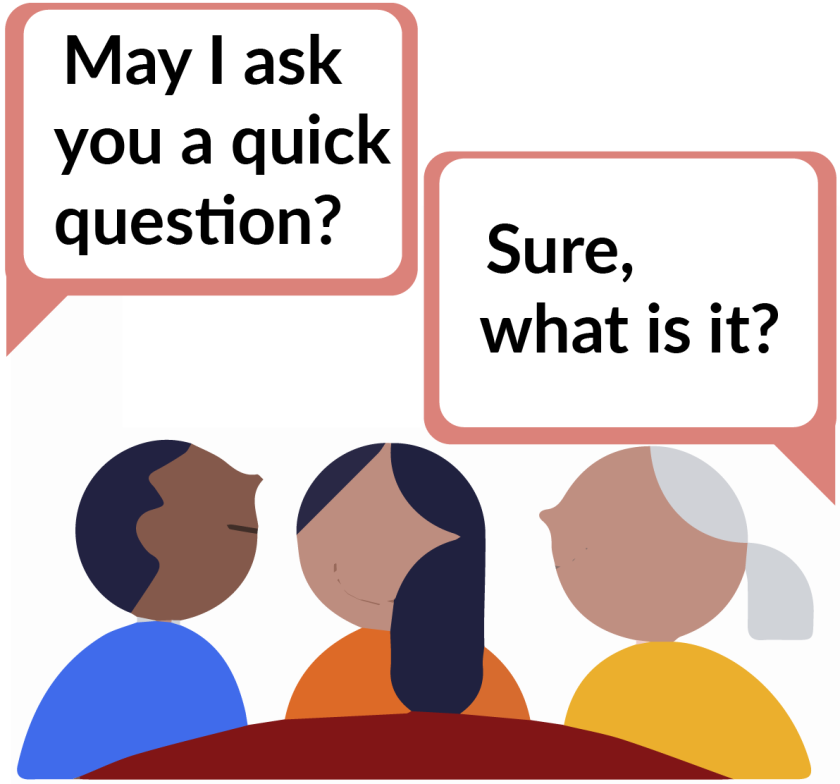
When to use Chat
Informal & Fast
- Send quick text messages to one or more people.
- Group size—Usually very small. 5 people or fewer.
- Fast-moving, text-based conversation.
- Longevity—Short. Conversations are quick and to the point.
- Interactivity—Low. Typically minimal discussion.
- Moderation—None.
- Privacy—Only open to people you add when you start the chat.
Learn Best Practice
Use Chat in Gmail for one-on-one or informal group conversations. Learn how to use Chat in Gmail.

Learn Gmail
Google Workspace: Gmail
Learn the basic components of Gmail to help you send and receive emails.

Learn Google Chat
Communicate With Your Team Using Google Chat
Use Google Chat to communicate with your team, customers, or business partners.

When to use Spaces (In Gmail)
Collaborate on class or work projects
- Group size—Small. Fewer than 15 people.
- Longevity—Medium. Only lasts the duration of the class or project.
- Interactivity—High. Co Student ID (EMPLID) and can contact tech support at ctedness—High. Solid group identity.
- Moderation—None, or p to know about the integrated Gmail experience.
- Integrated Gmail experience cheat sheet
- Create and send email, organize your inbox, and start and join video meetings and manage task assignments. Learn how to create a space.
Top 10 things to know about the integrated Gmail experience.
Use multiple communication channels—all in Gmail
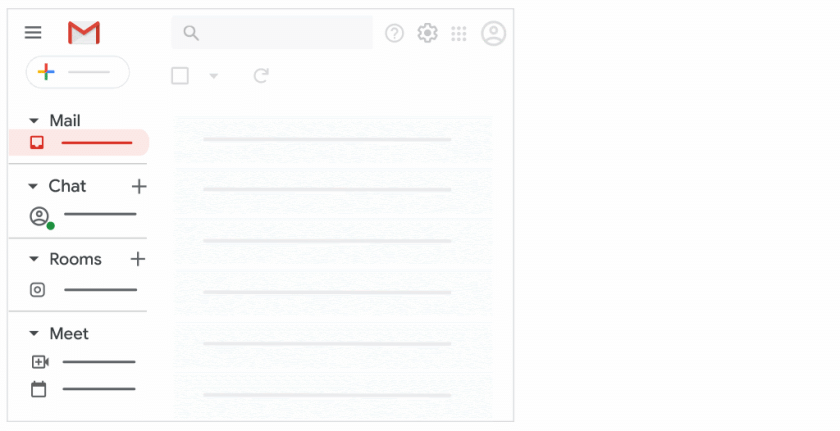
Whether you’re on your computer or your mobile device, the integrated Gmail experience has email, direct messages with one or more people, rooms, and video or audio meetings—all your online communication streams—in one familiar place: Gmail. It’s now easier to move from one communication stream to another without changing your context.
Contact the UMA Student Tech Hub for Live Support
207.621.3123 in Live Zoom or Live Chat
Quick Links
- MY UMA
- Apply to UMA
- Attend Student Orientation
- Emergency Notification Alert System
- IT Help
- Libraries
- MaineStreet
- My OneCard
- Navigate
- Select Classes
- Trail Blazer Workshop Series
- Student Support & Development
- Student Handbook
- Veterans & Military Services
UMS User Account Management
- Activate your UMS account (Activation Key Required)
- Change your password
- Recover a lost password
Moose Messages

This Q&A site is a place to ask your college questions and have them answered by a staff member. To get started, ask a question above.